



Trading platforms are specially developed software designed to meet the needs of retail traders. They give you the ability to enter and execute market trades in real time on your own, without having to pay another party to do it for you.
To access a trading platform, you’ll need to sign up for an account with an online brokerage. In exchange for providing access to trading platforms, the online brokerage charges fees and commissions on your trades.
Two of the most popular trading platforms today are MetaTrader 4 (MT4) and MetaTrader 5 (MT5). In this article, we’ll take you through the features and capabilities of the MT5 trading platform, including how you can place and control your trades via the platform.
What is MetaTrader 5 (MT5)? [1,2]
Developed by MetaQuotes Ltd, MT5 is a multi-asset trading platform that supports trading in forex, stocks and futures markets. It offers a range of advanced tools and capabilities, including comprehensive price analysis features, algorithmic trading applications (trading bots, Expert Adviser) and copy trading.
As a testament to its quality, the MT5 trading platform has won several awards across multiple years, including for Best Multi-Asset Trading Platform and Best FX Trading Platform. Most recently, the platform was once again awarded during the Finance Magnates London Summit 2023.
MT5 is highly popular among traders and investors, with many leading brokers offering the trading platform to their customers. You likely would have experienced this for yourself; when browsing for online brokerages, you’d probably have seen the MT5 trading platform being offered in the vast majority of cases.
Vantage offers MT5 as well as its forex-focused cousin, MT4, as part of our lineup of trading tools and platforms.
Is MT5 an upgrade of MT4?
Well, yes and no.
MT4 is indeed the predecessor of MT5, and was designed to focus on the needs of forex traders. The MT5 platform, meanwhile, was developed from MT4 in order to cater to a more diverse range of investors who prefer to trade beyond the currency markets, such as stocks, commodities and indices.
Here are some key differences between MT4 and MT5.
| Feature | MetaTrader 4 (MT4) | MetaTrader 5 (MT5) |
| Interface | Simpler | Sleeker and more modern look |
| Email System | Standard (no attachment) | Advanced system (can send attachments) |
| Pending Order Types | 4 | 6 |
| Built-In Indicators | 30 | 38 |
| Graphical Objects | 31 | 44 |
| Timeframes | 9 | 21 |
| Asset Types | around 250 tradable assets | over 1,000 tradable assets |
| Markets | Forex and CFDs | Forex, futures, stocks, bonds, energies, crypto and options |
For a more in-depth guide, read our article ‘MT4 vs MT5 Comparison – The Difference Between MetaTrader 4 and 5‘ to uncover the specific features and advantages of each platform that could enhance your trading performance.
Benefits of trading with MetaTrader 5
MetaTrader 5 (MT5) offers advanced trading capabilities and tools for traders looking to gain a competitive edge in the financial markets.
More in-depth technical analysis
Thanks to its expanded suite of technical indicators and charting tools, the MT5 trading platform is able to facilitate deeper levels of technical analysis. This will be important to traders who rely heavily on technical analysis to formulate their trading strategies.
There are a total of 38 technical indicators available on the MT5 platform, ranging from
- Trend indicators: Moving Averages and Bollinger Bands
- Oscillators: Relative Strength Indicator (RSI)
- Volume indicators: Accumulation/Distribution and Money Flow Index
- Bill Williams indicator: Alligator and Fractals.
In addition, MT5 supports 21 timeframes in total, allowing traders to achieve fine-grained control over their analyses and charts.
Enhanced trading with more order types [3]
On the MT5 platform, traders can experience a powerful trading system with more order types, executing modes and accounting systems.
Choose from multiple order types –
- Market orders
- Six pending orders
- Two stop orders
- Trailing stop
To meet various trading objectives, the platform also offers four order execution modes:
- Instant
- Request
- Market
- Exchange
As for order accounting types, MT5 provides flexibility and clarity for managing your positions:
- Supports the traditional netting system.
- Supports the hedging option system.
- Maintains separate accounting of orders and trades for greater clarity.
Additionally, through Market Depth, traders can easily track the bid and ask for a particular instrument at prices that are closest to the market.
Trade more than just forex markets
In addition to the currency markets, traders can access and trade a variety of instruments and markets. These include commodities, stocks, indices, and others.
As such, MT5 makes for a convenient all-in-one trading platform for most investors seeking to trade popular asset classes.
Copy trading [4]
The MT5 trading platform enables automatic copying of trades from one account to another, allowing investors to replicate the trades made by professional traders. This is available via the Trading Signals feature, which offers a range of free and paid trading signals.
All signal providers are sorted by trading results, making it easy to select an appropriate provider. Once you’ve done so, simply connect to the signal to automatically replicate their trades.
Algorithmic trading [5]
Simply put, you can deploy AI trading bots on the MT5 platform to perform algorithmic trading and carry out automated technical analysis on your trade.
No programming background or knowledge is required for this, as traders can purchase or rent hundreds of different trading applications directly on the MetaTrader Market. You can select trading bots based on your objective and according to your budget, and also test them out for free before making a purchase.
How to Download, Install, and Set Up MetaTrader 5
Follow the steps below to download the trading platform and complete the initial MT5 setup.
Step 1: Open a Trading Account
To complete your MT5 setup, you’ll need a demo or live trading account that supports the MT5 platform.
- Register for a trading account with Vantage.
- Choose a Demo Account if you’d like to practise with virtual funds.
- Opt for a Live Account if you’re ready to trade with real capital.
- After registration, you’ll receive your MT5 account login details, including your account number, password, and trading server.
Note: Metatrader 5 demo accounts may offer access to a wider range of instruments than MT4, such as indices or share CFDs, depending on the broker.
Step 2: Download the MetaTrader 5 Platform
Once your account is ready, download MetaTrader 5 on your preferred device.
- Visit the MetaTrader 5 download page on the Vantage website.
- Select the version that matches your device’s operating system:
- PC (Windows, macOS, Linux)
- Mobile (iOS or Android)
- Download the installation file and wait for the process to complete.
Tip: If you prefer not to download the software, you can often perform an MT5 online login directly in your browser using the WebTrader.
Step 3: Install MetaTrader 5
On Windows:
- Open the downloaded installer file.
- Approve any security prompts that may arise.
- Accept the license agreement.
- Follow the setup wizard to complete the installation.
On macOS or Linux:
- Open the installer or setup package provided.
- Follow the platform-specific installation steps.
- Grant any required system permissions.
Once installation is complete, MetaTrader 5 will be ready to launch.
Step 4: Log In and Connect to the Trading Server
When launching MT5 for the first time:
- Select “Login to an existing account”.
- Enter your MT5 account number and password.
- Choose the correct trading server associated with your account.
- Click ‘Login’ to connect.
If the login is successful, live price feeds and trading charts will appear.
Step 5: Initial Setup for MT5 Users
After your first MT5 login, you can customise your trading environment:
- Open Market Watch to view available asset classes and instruments.
- Select your preferred chart layouts and timeframes.
- Enable One-Click Trading if it’s supported and suits your trading approach.
- Explore built-in tools such as the economic calendar.
These settings can help tailor MT5 to your trading preferences as you become more familiar with the platform.
Common MetaTrader 5 Setup Issues
- If installation fails: Try running the installer with administrator permissions.
- If unable to log in: Confirm that the trading server matches your account details.
- If there’s no market data: Check your internet connection and ensure your account is active.
With these steps and troubleshooting complete, MetaTrader 5 should be installed, connected, and ready to use.
Setting up an MT5 trading account on Vantage
How to set up a live account
Setting up a live account allows you to trade the markets in real time. Here’s how you can set up a live account on Vantage.
- On the Vantage website, mouse over “Register” in the top right, and then click “Trade Now”.
- Follow the on-screen instructions to register for your live account. You will also need to submit documents for verification purposes.
- We will contact you once your live account is ready.
- Once your account has been funded, login to the MT5 platform to start trading.
How to set up a Metatrader 5 demo account
If you prefer to try out MT5 on a trial basis without a live account, you may do so using a demo account.
- On the Vantage website, mouse over “Register” in the top right, and then click “Practice Trading”.
- Follow the on-screen prompts to register for a demo account.
- Fill in your particulars to receive your username and password. Be sure to keep those safe.
- Using your newly generated credentials, login to MT5 to familiarise yourself and start testing out trades.
Overview of the MetaTrader 5 WebTrader interface
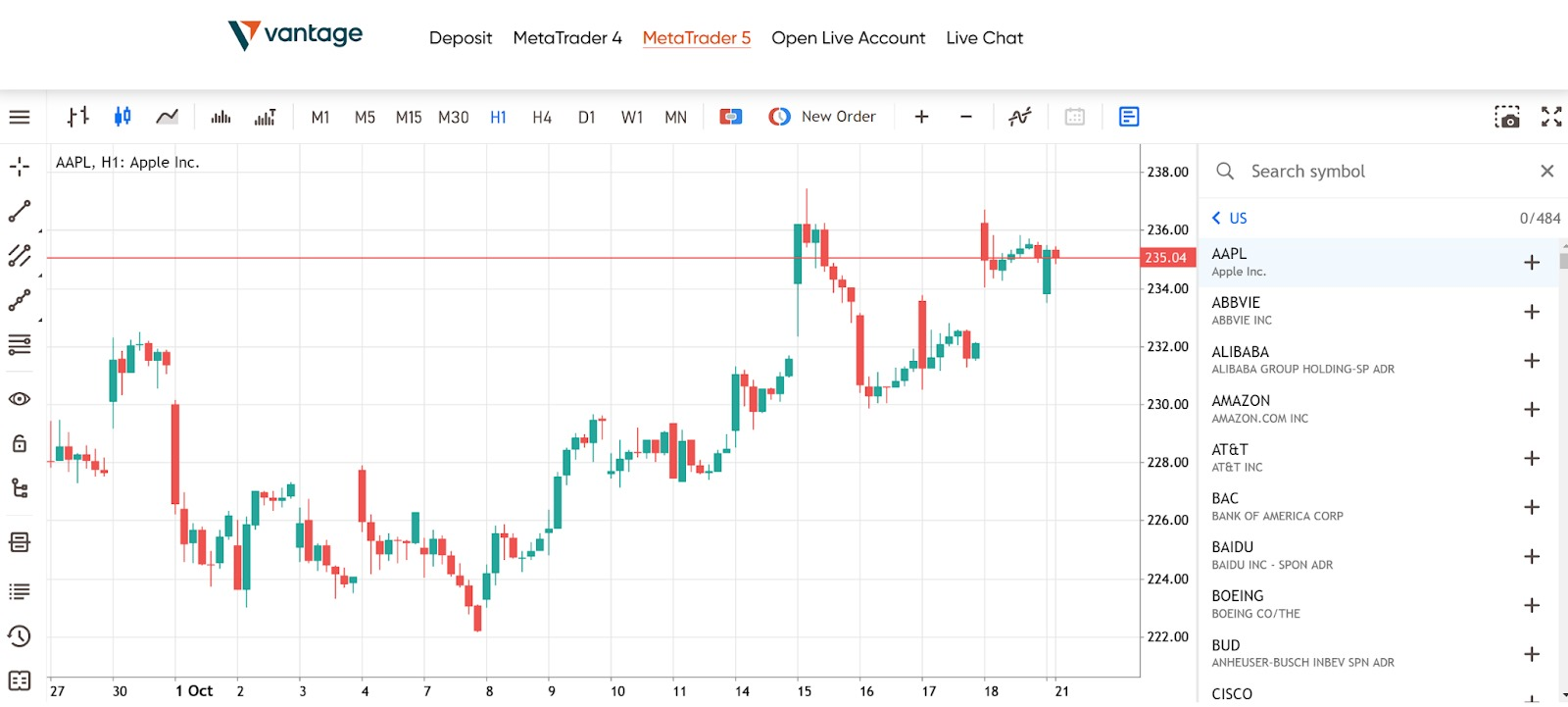
The screenshot above shows our web-based version of the MT5 trading platform. In the toolbar on top, you can see several symbols that let you choose between different chart types (bar, candlestick or line) as well as time frames.
On the right of the screen is Market Watch, which can be toggled on or off by clicking the right-most button in the top toolbar. Here, you can search for the asset you want to trade.
Assets are sorted into different categories, such as commodities, stocks, forex, bonds or ETFs. Click on the asset you want to trade to call up the price chart, which will be displayed on the main screen.
How to plot indicators on MT5 WebTrader
Once the asset you want has been selected, you can perform technical analysis by inserting indicators on the price chart.
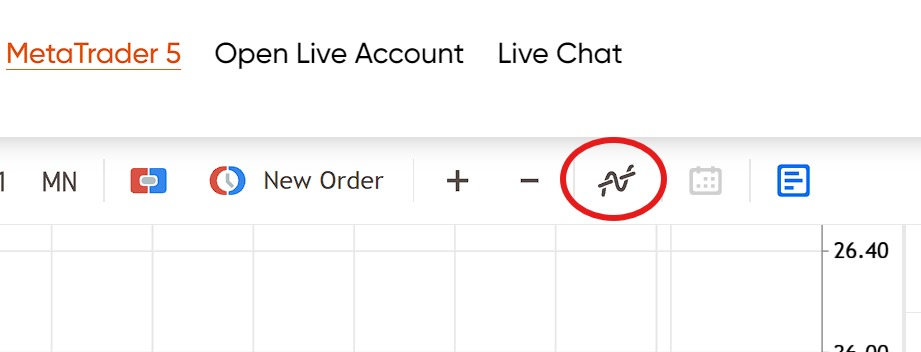
Click the “Add Indicator” in the top toolbar, circled in red. You can also use Ctrl+I. The list of technical indicators will pop up.
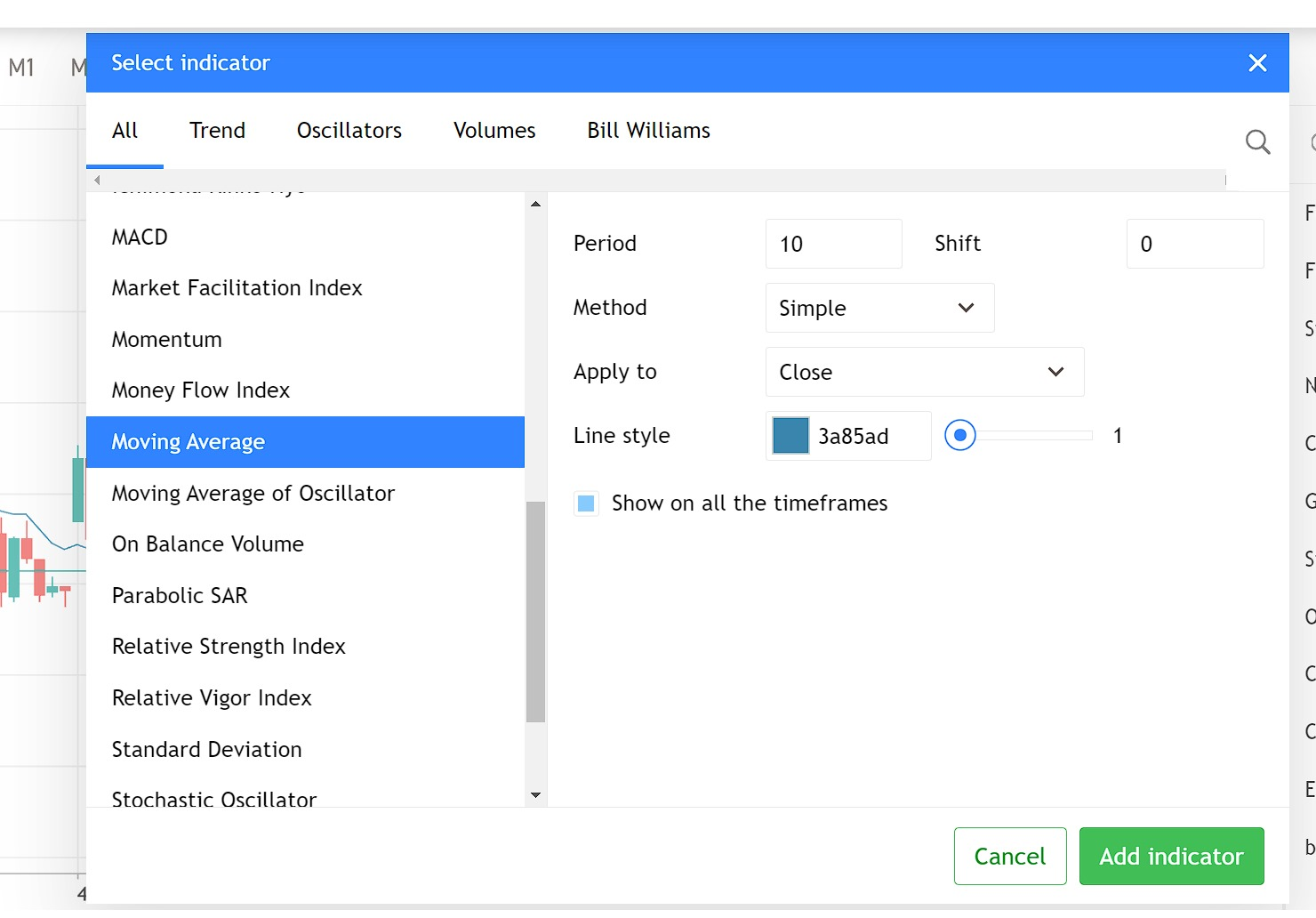
Select the indicators you want to use from the list, adjust the parameters if necessary, and then click “Add Indicator”. This will cause the selected technical indicator to appear on your price chart.
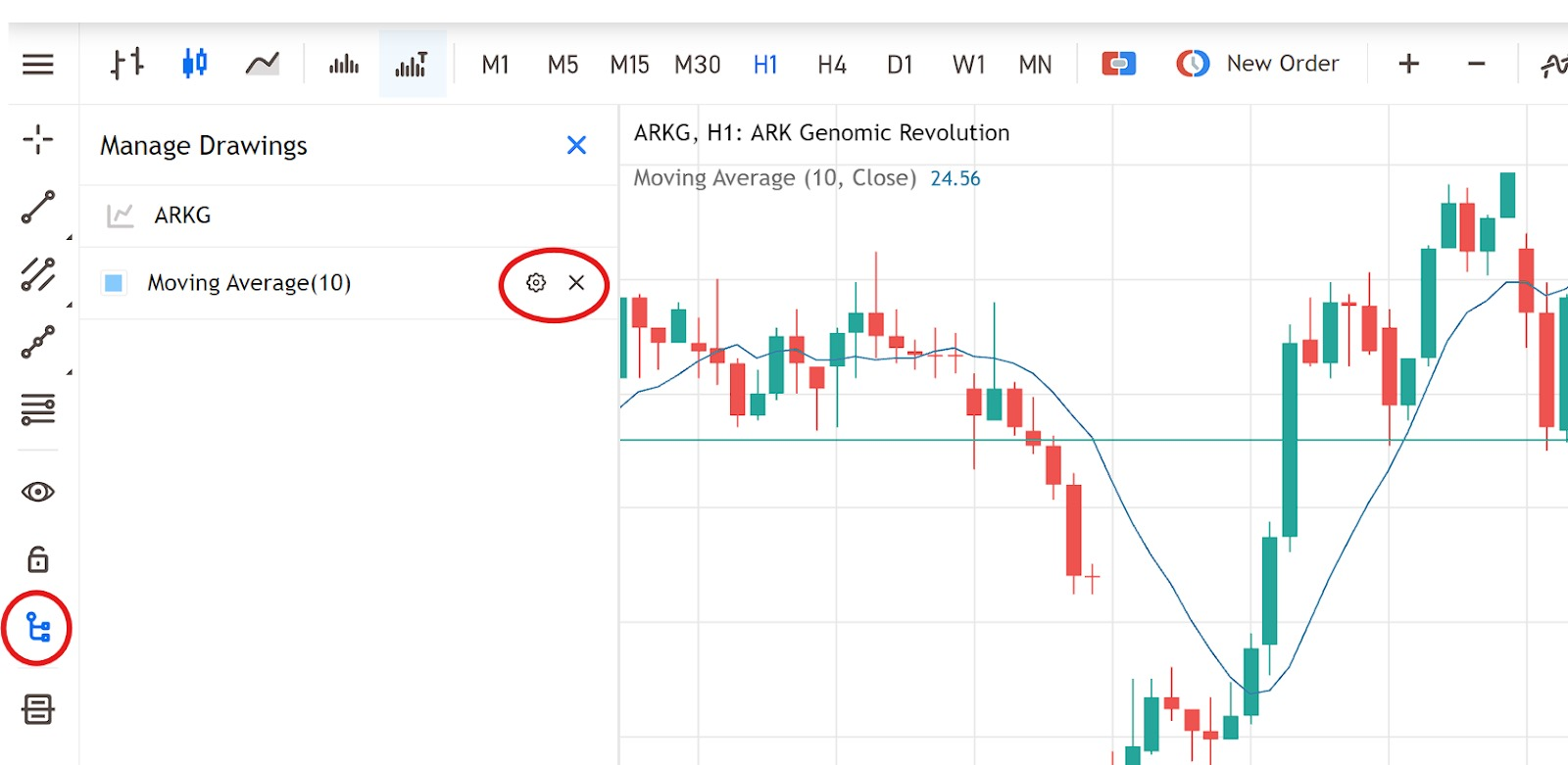
To change or remove indicators and drawings, refer to the toolbar on the left-hand side. Click the “Manage Drawings” icon to bring up a list of all current drawings.
Now you can click the gear icon to change the parameters of your technical indicator, or click the X to remove it from the price chart.
How to make a trade on MT5 WebTrader
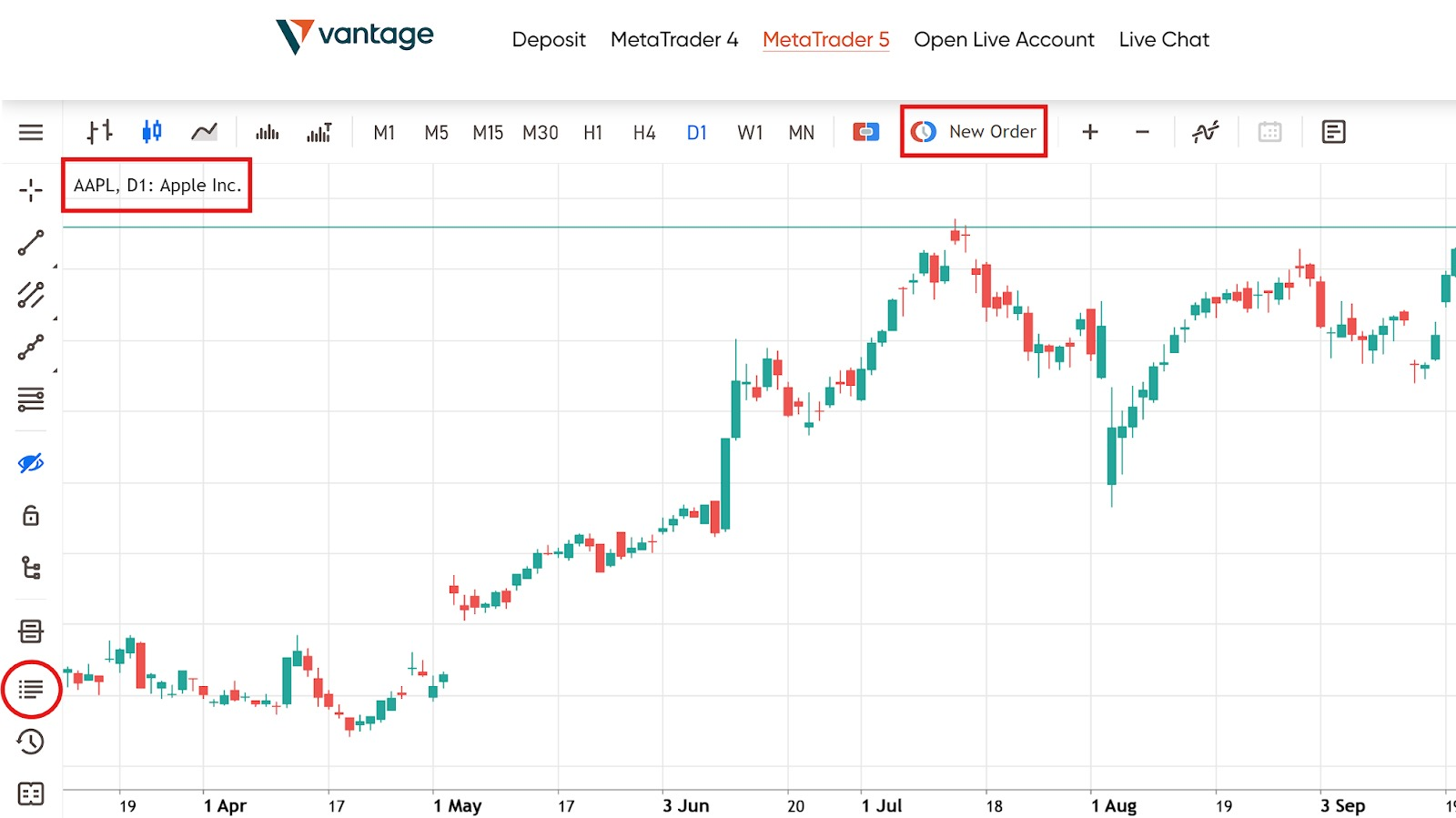
In the screenshot above, we’ve called up the AAPL price chart in preparation to make a trade.
We start by clicking the “New Order” button in the top toolbar to bring up the order screen on the left.
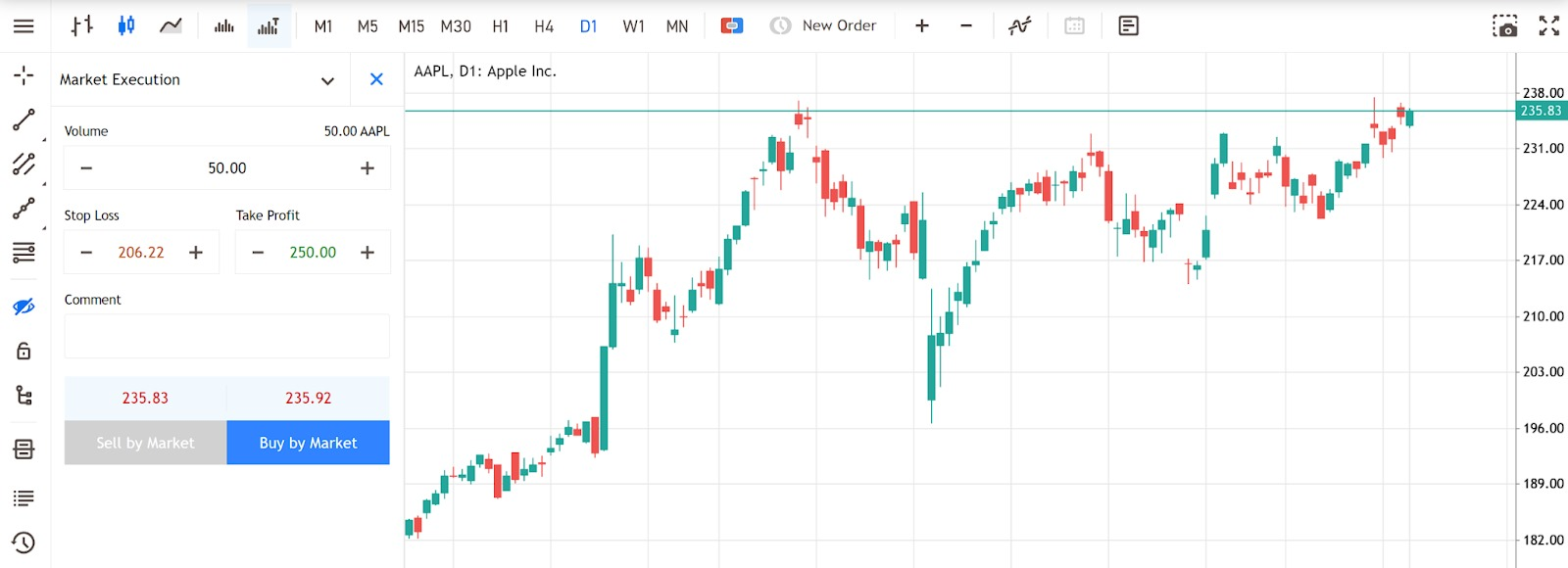
Select your trade volume, and set your Stop Loss and Take Profit levels by entering the relevant values into the respective fields. Here, we’ve entered 50 shares, with Stop Loss at 206.22 and Take Profit at 250.
This means we’re buying 50 AAPL shares at the current market price. If the share price falls below 206.22, the Stop Loss will trigger, selling off our shares to prevent further losses. If the share price rises to 250, the Take Profit will trigger, selling off our shares to net a profit.
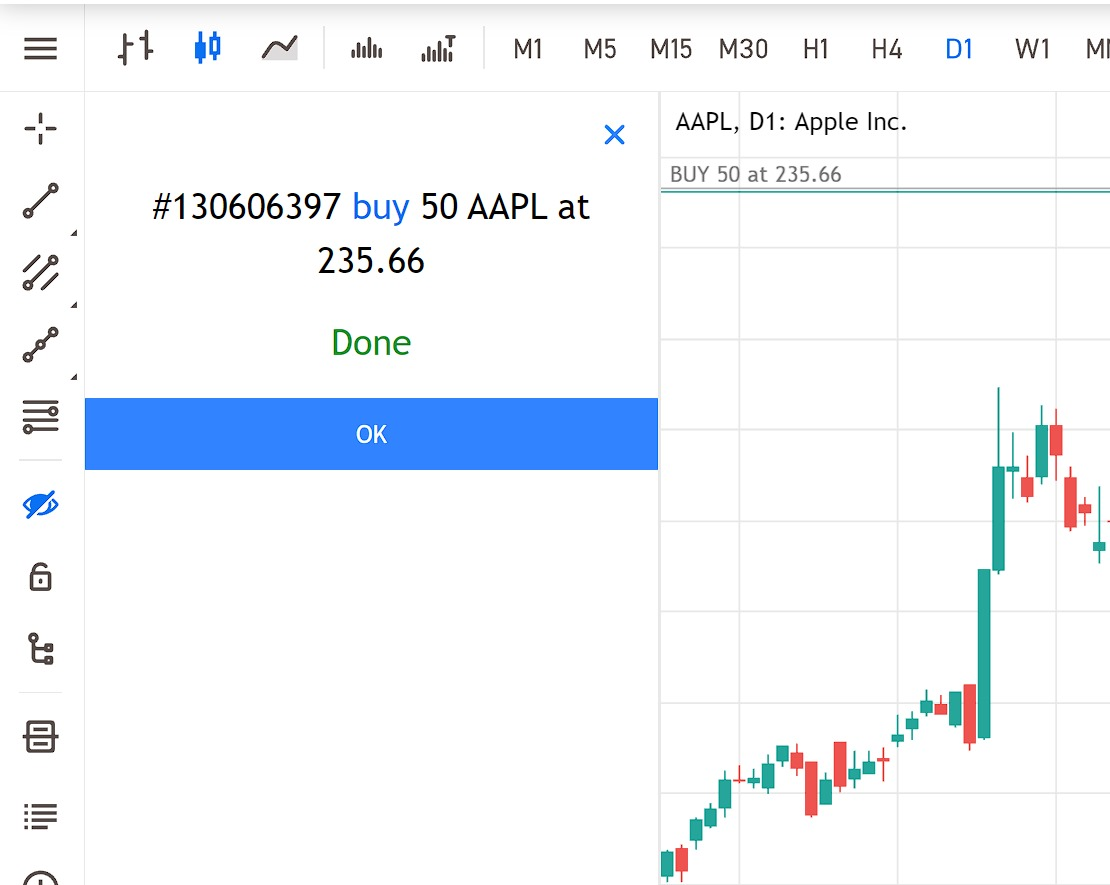
Click “Buy by Market” to execute the trade. You’ll get a confirmation screen.
How to manage your trades on MT5 WebTrader
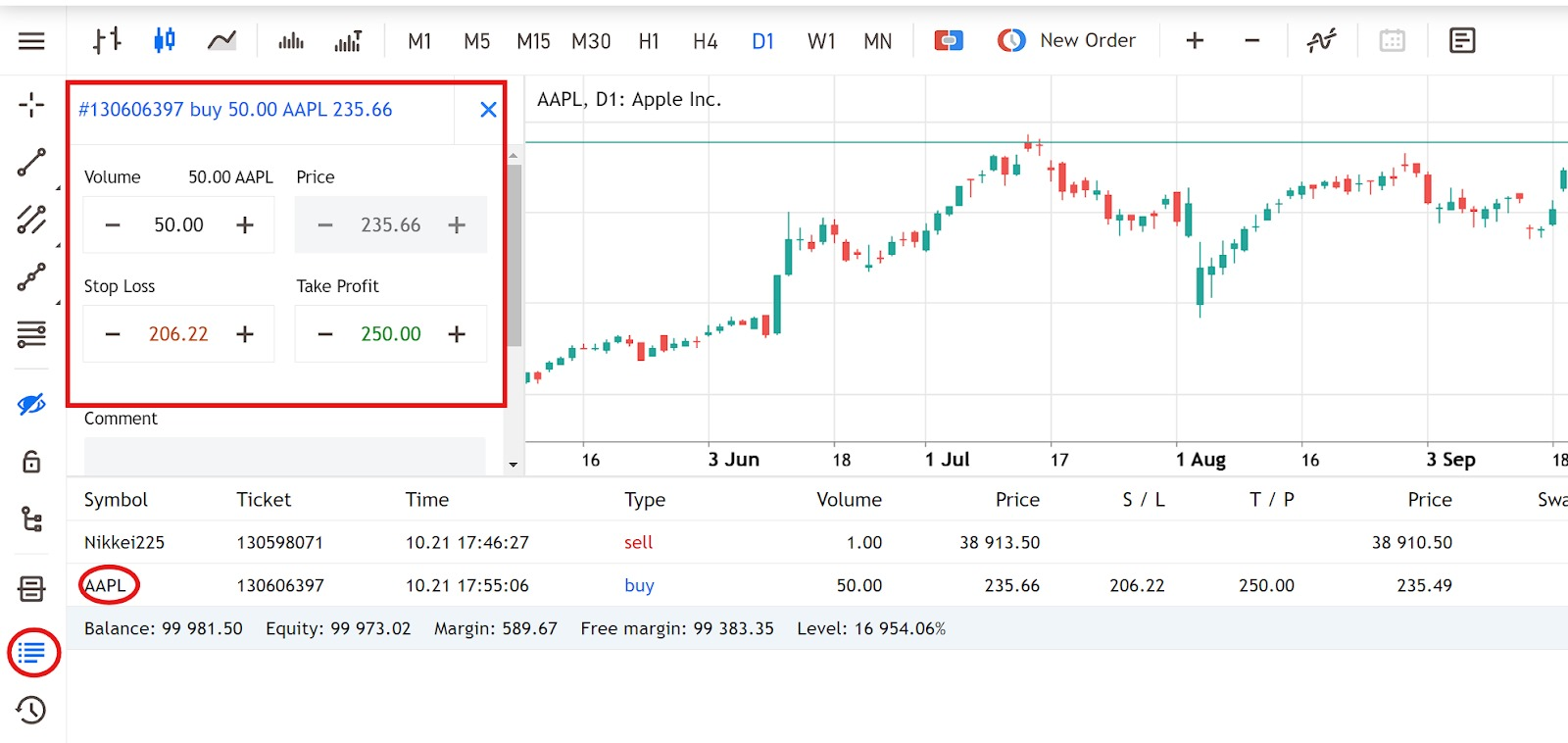
Once you’ve entered your trade, you can call it up by clicking the “Trade” button on the left-hand toolbar. All active trades will be displayed at the bottom of the screen.
Click the symbol of the trade you want to manage; in this case, it’s the AAPL trade. This will cause a trade window to pop up, as outlined by the red square in the screenshot.
Here you can make adjustments to your Stop Loss and Take Profit levels if necessary.
Power your trades with MT5 at Vantage
In this article, we’ve just scratched the surface of what the MT5 trading platform can do. There are many more capabilities and features to be explored, especially in the desktop app version.
Nonetheless, we hope that this article has given you a good foundation to start understanding the important role that MetaTrader 5 plays in your investing journey. Whether you’re a beginner investor just starting out or are an experienced trader looking to up your trading game, the MT5 platform has plenty to offer.
But don’t just take our word for it. Register an account with Vantage to start exploring the MT5 platform yourself. Trade CFDs on the world’s most popular instruments such as stocks, gold, bonds and forex at greater capital efficiency with up to 500:1 leverage, enjoy transparent pricing, low fees and tight spreads, and power your trades with sophisticated tools on our MT5 trading platform.
Sign up to start experiencing the Vantage advantage now!
References
- ”MetaTrader 5 Trading Platform – MetaTrader 5“. https://www.metatrader5.com/en/trading-platform . Accessed 22 October 2024.
- “MetaQuotes wins two prestigious awards at the London Summit – MetaQuotes”. https://www.metaquotes.net/en/company/news/5420 . Accessed 22 October 2024.
- “Trading and orders in MetaTrader 5 – MetaTrader 5″. https://www.metatrader5.com/en/trading-platform/trading . Accessed 22 October 2024.
- “Trading Signals in MetaTrader 5 – MetaTrader 5″. https://www.metatrader5.com/en/trading-platform/trading-signals . Accessed 22 October 2024.
- “Algorithmic Trading – MetaTrader 5”. https://www.metatrader5.com/en/automated-trading . Accessed 22 October 2024.